Introduction#
When opening a root shell or administrator window and having it open with a different color background than one opened as a regular user is not a novel concept. It is a visual reminder that you are operating in God Mode. However, this typically does not happen when switching to root using sudo from a regular window.
This article demonstrates how I achieved that while using kitty as my terminal emulator.
[!NOTE] Scroll down to the bottom to the update from 20251116, where I show the syntax used for Alacritty to achieve the same thing.
Let’s get started#
Step 1#
We need to turn on remote control in kitty to allow the shell to dynamically change the background of the window. We can do this by adding or commenting out the following like in ~/.config/kitty/kitty.conf:
allow_remote_control yes
[!NOTE] This is potentially insecure. Look at
remote_control_passwordoptions in your config file if you want to close options for potential hacker activity, but that is out of scope for this article.
Step 2#
Now we have to add the code to change the background color to our configuration. I am using Fish Shell, and I haven’t tested this on any other shell, so your mileage may very. Yada, yada.
For switching to root, I put the line in fish_greeting.fish. Reason being, it gets processed before fish_prompt.fish. However, for switching back to the regular user, the line cannot be as fish_greeting.fish only gets processed once.
So, to change the background color to red when sudo-ing to root, add:
kitty @ set-colors background=#82181A
to somewhere convenient for you in your fish_greeting.fish.
Similarly, add:
kitty @ set-colors background=#303446
to somewhere convenient in fish_prompt.fish. This ensures that when the shell reloads when dropping back from your root shell, your terminal colors are reset.
[!NOTE] The HEX color codes are fitting for my theme; you should change them to match your configuration. The second one should be the normal default background color you have confured for your shell.
Results#
After we have done all this, this is the result:
| Regular user | root access |
|---|---|
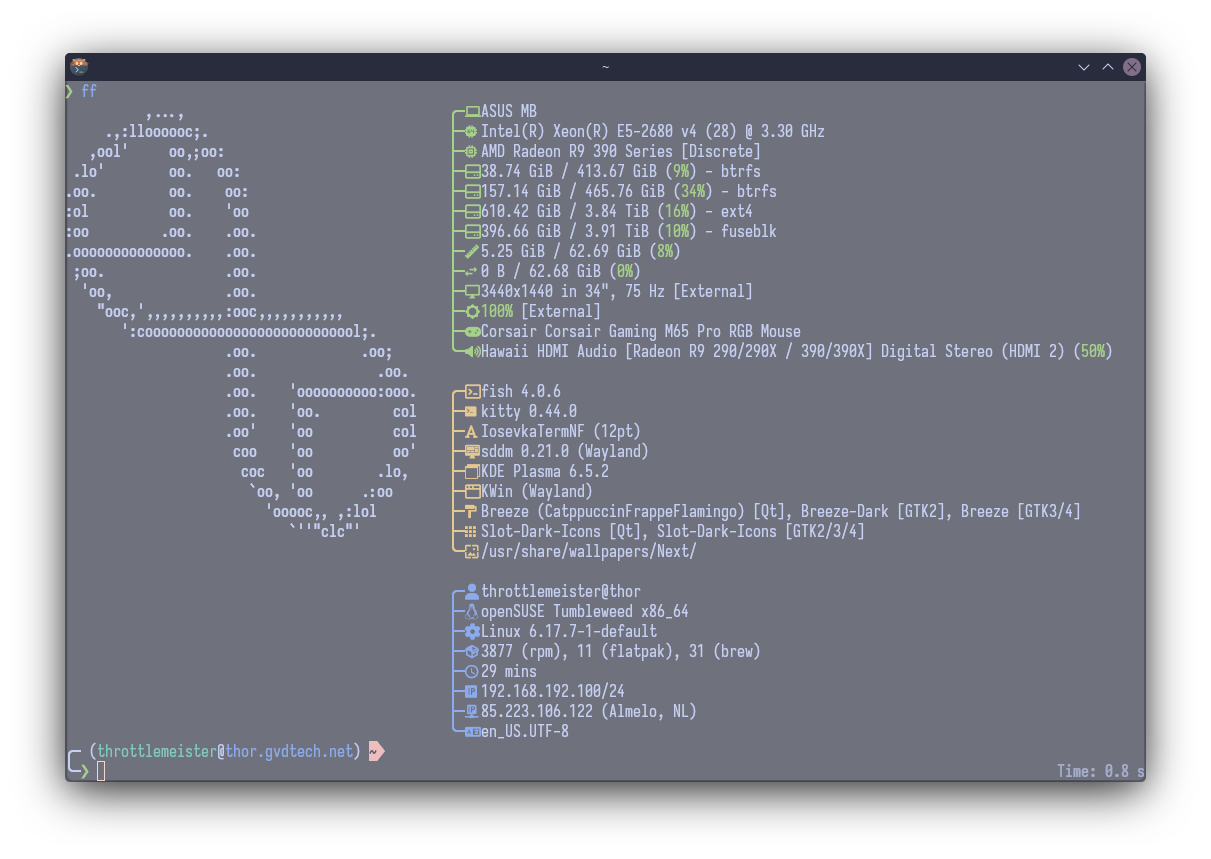 | 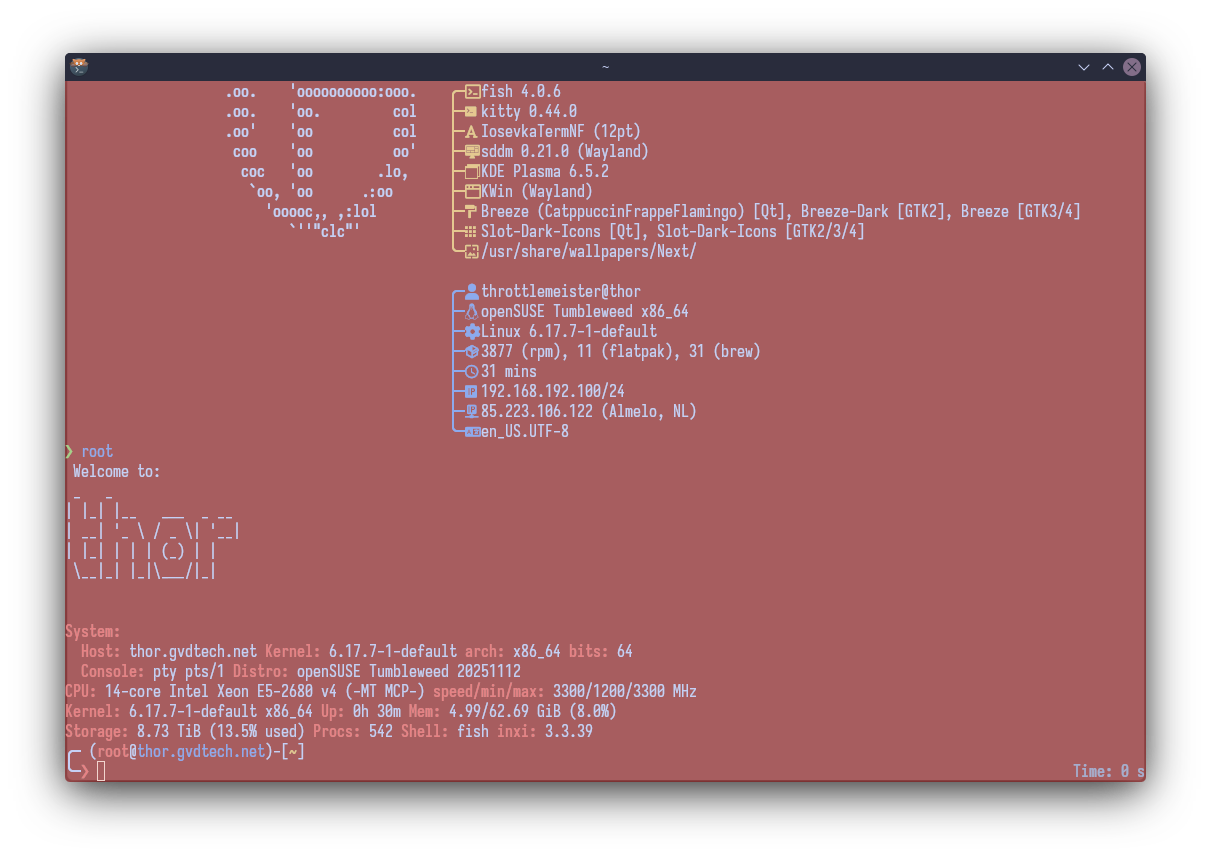 |
If we exit the root shell, the window returns back to the first visual configuration.
Done! We now have a very visual indicator to let us know we are working as the root user and we should be extra careful as to what we are doing.
[!WARNING] This only works as described using the Kitty terminal. If you follow this, you may break other terminal programs you may use if you don’t ensure this changes only apply when using Kitty.
UPDATE 20251116#
As I am using the fish shell, I have added the following function to my fish_prompt.fish file and call it when building my prompt:
function __check_term
  if set -q KITTY_WINDOW_ID
    if [ (id -u) = 0 ]
      kitty @ set-colors background=#82181A
      return 0
    else
      kitty @ set-colors background=#303446
      return 0
    end
  end
  if set -q ALACRITTY_WINDOW_ID
    if [ (id -u) = 0 ]
      alacritty msg config "colors.primary.background='#82181A'"
      return 0
    else
      alacritty msg config "colors.primary.background='#303446'"
      return 0
    end
  end
end
This checks for a variable set by Kitty or Alacritty and sets the background when either is running, and does nothing when it is not - aka when another terminal emulator like Konsole is used. This prevents breakage or error messages when attempting to set commands that are not available for the currently used terminal.
[!NOTE] You also want to use visudo to add
KITTY_WINDOW_ID ALACRITTY_WINDOW_ID ALACRITTY_SOCKETto the line for env_keep to ensure some environment variables are transferred to the root shell from your user.
UPDATE 20251117: a universal way#
So, after posting about this on Reddit, a contributor showed me an easier and more universal means of doing things. Not by using the programmatic interface for Kitty and Alacritty, but using escape codes to set the background color. This a allows for simpler scripting in fish_prompt.fish, and as bonus works in any terminal emulator that supports escape codes. Which should be most of them.
This is how it now looks in my fish_prompt.fish:
function __check_term
    if [ (id -u) = 0 ]
        printf '\x1b]11;#82181A\x1b\\'
    else
        printf '\x1b]11;#303446\x1b\\'
    end
end
That’s it. Very simple, very clean. No modifications to /etc/sudoers needed. No potential security risks by allowing remote access to your terminal. Just clean and simple.